
Charge a member or bill a family
Send a one-off invoice or start a recurring membership.
You charge members for products: a membership, a class, a lesson, a shirt. If what you want to charge for isn’t a product yet, add it first under Club SettingsStore (see Storefront). You can mark it Private so only admins see it.
Charge one member
Open the member’s Billing tab
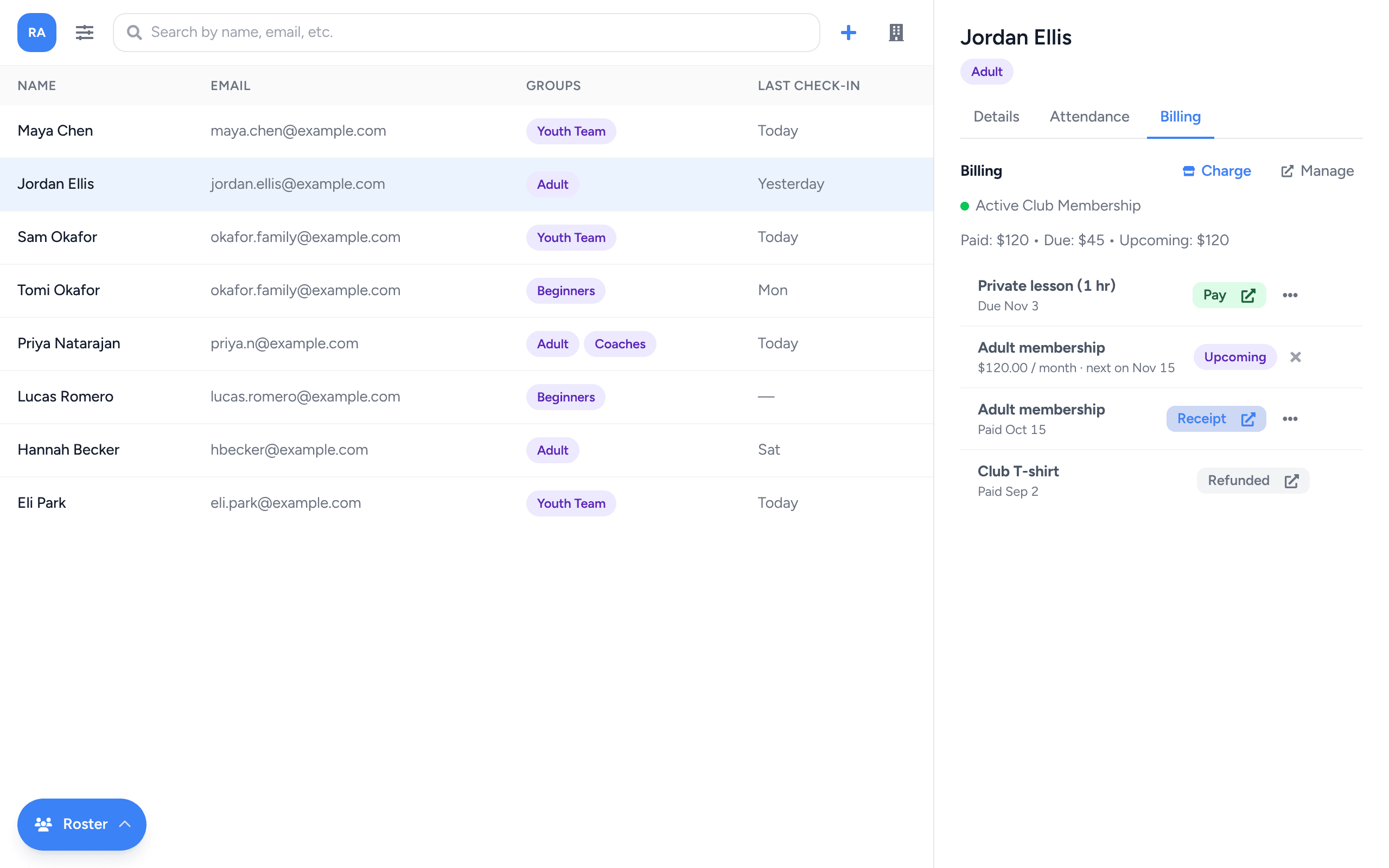
Click the member on the Roster, then the Billing tab in the sidebar.
Click Charge
Charge is at the top right of the Billing section. If it’s grayed out, Stripe isn’t connected yet (Connect Stripe).
Add products to the cart
In the Charge <name> window, click a product and Add to cart. Add as many as you need, then Checkout.
Charge the card or send an invoice
Check the total and the member’s email, then pick one:
- Charge charges the card on file right away and emails a receipt. You’ll see Payment method on file when there is one.
- Send Invoice emails the member a link to pay online. Use it when there’s no card on file; once they pay, the card is saved for next time.
Monthly and yearly memberships
When the cart holds a Monthly or Yearly product, the member is signed up for a subscription: they’re billed now and then automatically every month or year. It shows on the Billing tab as Upcoming with the next date. You can’t mix monthly and yearly products in one checkout.
To stop a subscription, click the × next to Upcoming and confirm Cancel subscription. It stops future invoices; past payments aren’t refunded.
Charge several members at once
Tick the checkboxes next to their names on the Roster. The sidebar shows the selection, and its Billing tab has the same Charge button: one checkout, one invoice per member. Charge uses each member’s card on file; Send Invoice appears when everyone selected has an email.
Bill a family
Put children in a family with a parent once, and every charge for a child goes to that parent automatically.
Make sure the parent is on the roster
Add them like any member (or they sign up with the join link).Link them
Open the child, go to the Details tab, and on the Family card click +, then Add parent. Pick the parent under Member and click Add. (Or start from the parent and use Add child.) More in Families.
Charge the child as usual
The guardian with the Pays badge is billed: charges and invoices for any child in the family go to their card and email. The child’s Billing tab says their payments are managed by that parent.
Fees and payouts
Payments land in your club’s Stripe account and pay out to your bank on Stripe’s schedule. Card processing and platform fees are taken from each payment. Manage on the Billing tab opens the member’s billing page in Stripe.