
Check-in kiosk
Let members check themselves in at the front desk.
Put a tablet or laptop at the front desk and members check themselves in by typing their name. Every check-in is saved to the member’s attendance history and feeds the Dashboard.
Start the kiosk
Log in on the front-desk device
Use an admin account, on the device you’ll leave at the desk.Switch to Check-in
Choose Check-in in the sidebar on the left. On a phone, tap the menu button (☰) at the top left first.
Leave it open
The screen shows your club name and a big Check In search box.
What members do
Type their name
A few letters is enough. Matching members appear as they type.Tap Check In
They see “Welcome <name>! You’re checked in.” and the box clears for the next person. Anyone already checked in today shows “Checked in today at…” instead of a button, so nobody counts twice.
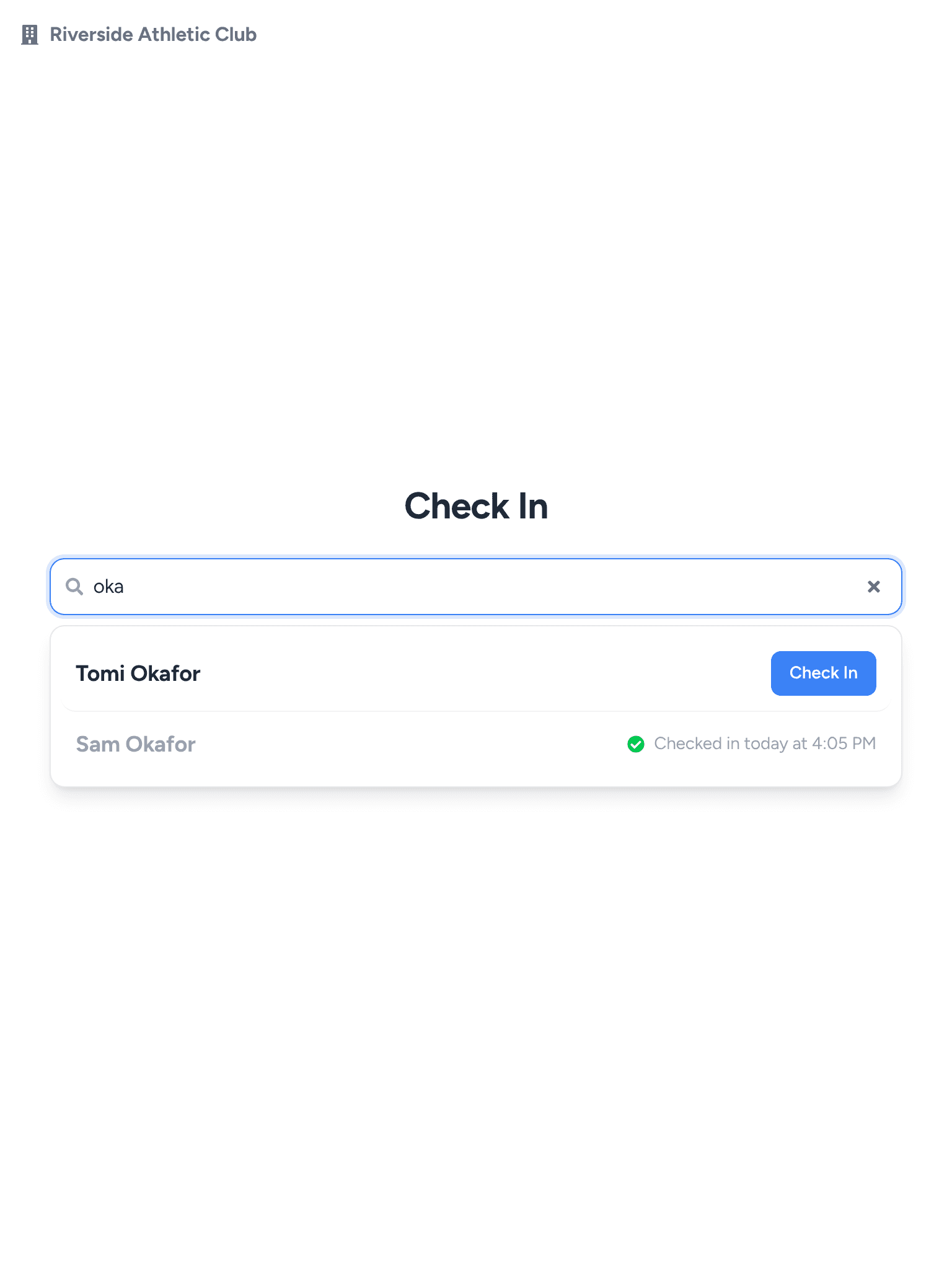
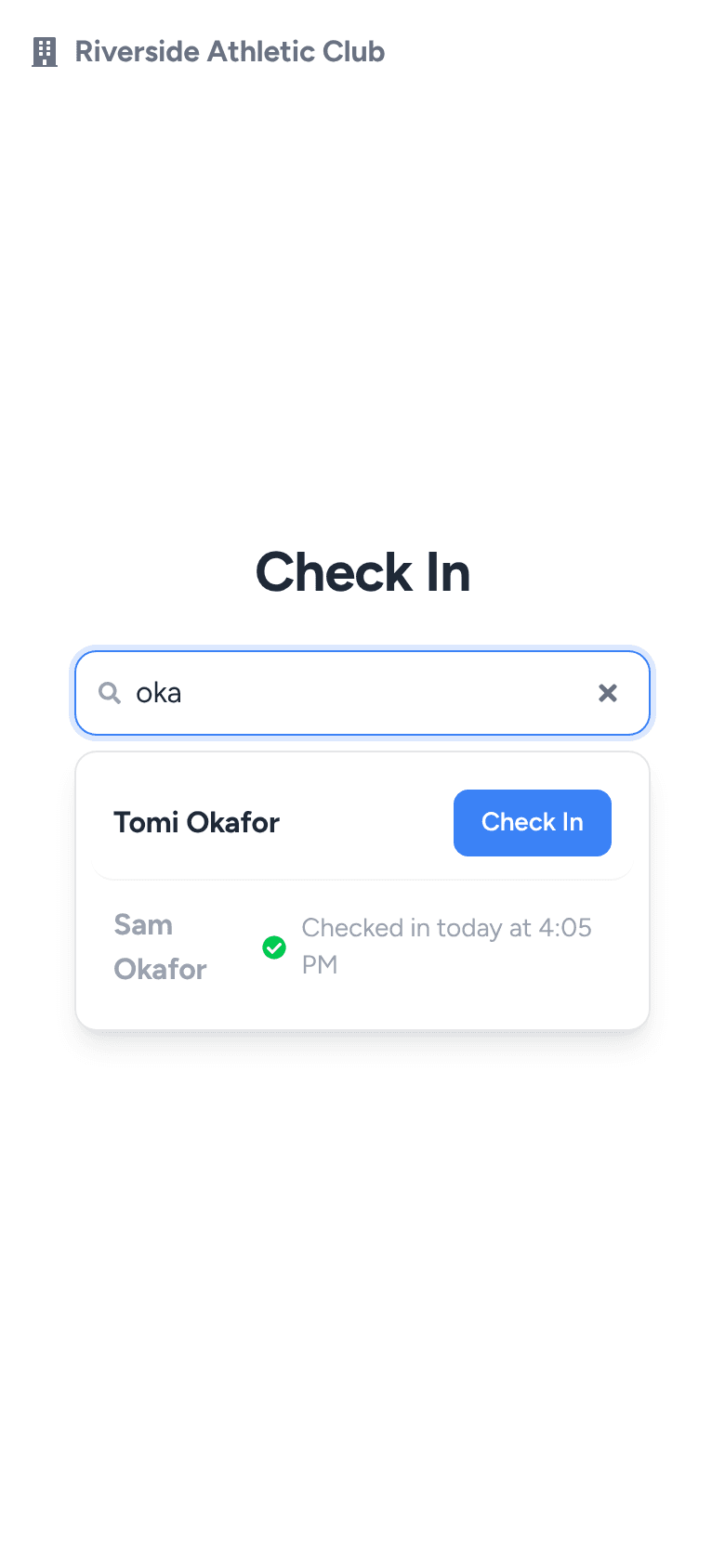
If no one matches, they see “No club members found named …” and an Add Member button, so a first-time visitor can add themselves with a name and email.
See who came
- One member: open them on the Roster and go to the Attendance tab for a calendar of visits. Check in today there checks them in by hand (or removes it).
- Everyone: switch to Dashboard for an attendance heatmap and trends.
- A spreadsheet: select members, then …ExportAttendance, this month (or the last 12 months).
The Attendance tab and exports are part of the Pro plan.