
Booking calendars and classes
Let people book time with you from a link, and run classes with a set number of spots.
Two kinds of scheduling, both under the Scheduling view:
- Booking calendars: you set your hours, share a link, and members book open times (private lessons, assessments, fittings).
- Classes: a weekly class with a set number of spots that members of a roster group RSVP to, and you check in.
Choose Scheduling in the sidebar on the left.
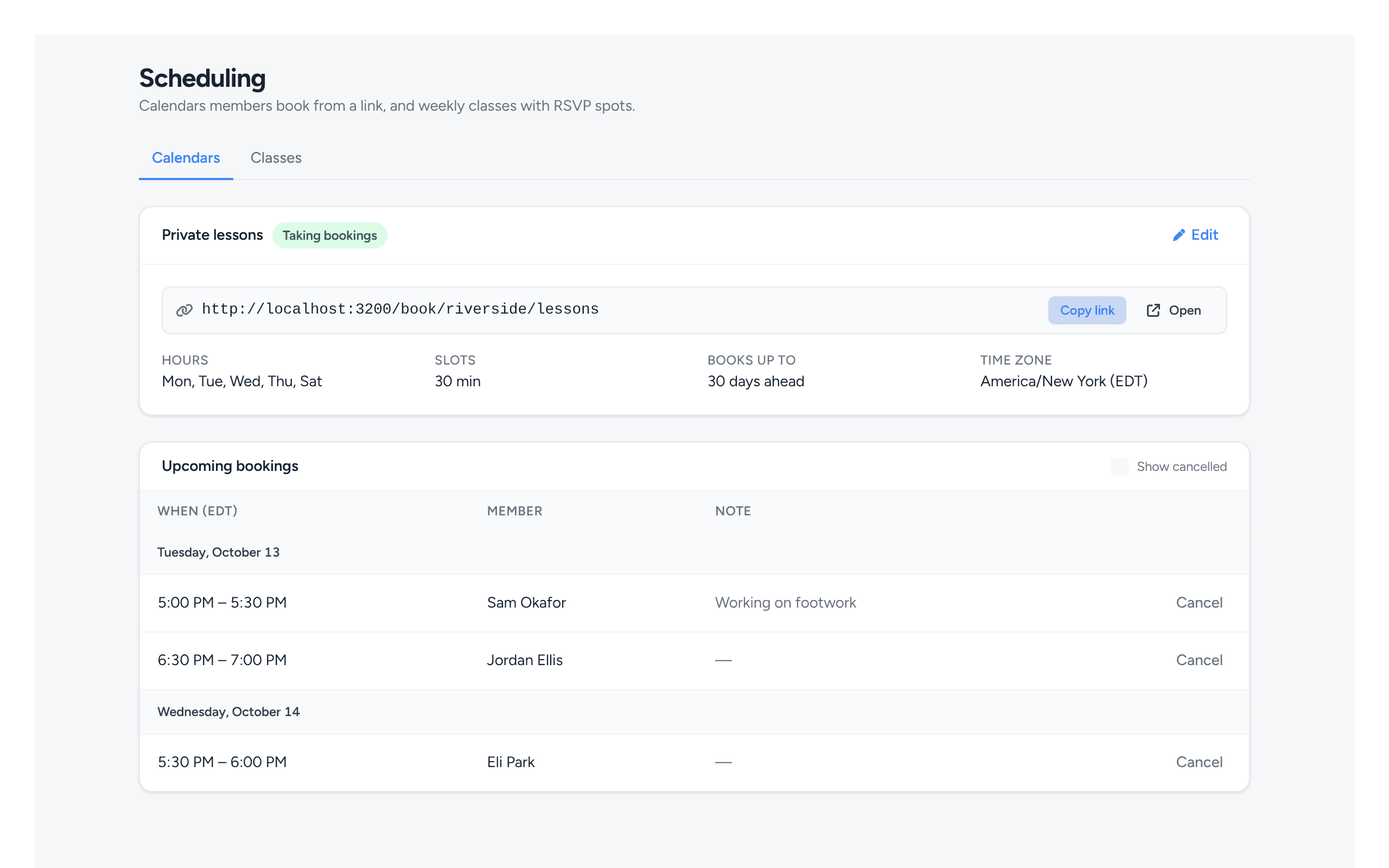
Booking calendars
Create your calendar
Click Create my calendar
On the Calendars tab. Each admin or coach can have their own calendar.Name it and pick a link
Title is what members see (“Private lessons”). Link is the end of the booking address, like
fencingoffice.com/book/your-club/lessons: lowercase letters, numbers and dashes.Set the rules
- Slot length (15 minutes to 2 hours) and an optional Break between bookings.
- Book up to how many days ahead, and Minimum notice (e.g. no bookings less than 2 hours out).
- Time zone: your hours are in this zone, and members see times in it too.
Set your weekly hours
Tick the days you’re available and set the hours. Add hours adds a second range on the same day (say 9–12 and 4–8).
Block time off
Under Time off, Add time off for vacations, tournaments or holidays.Create it
Click Create calendar, then Copy link and share it.
What members see
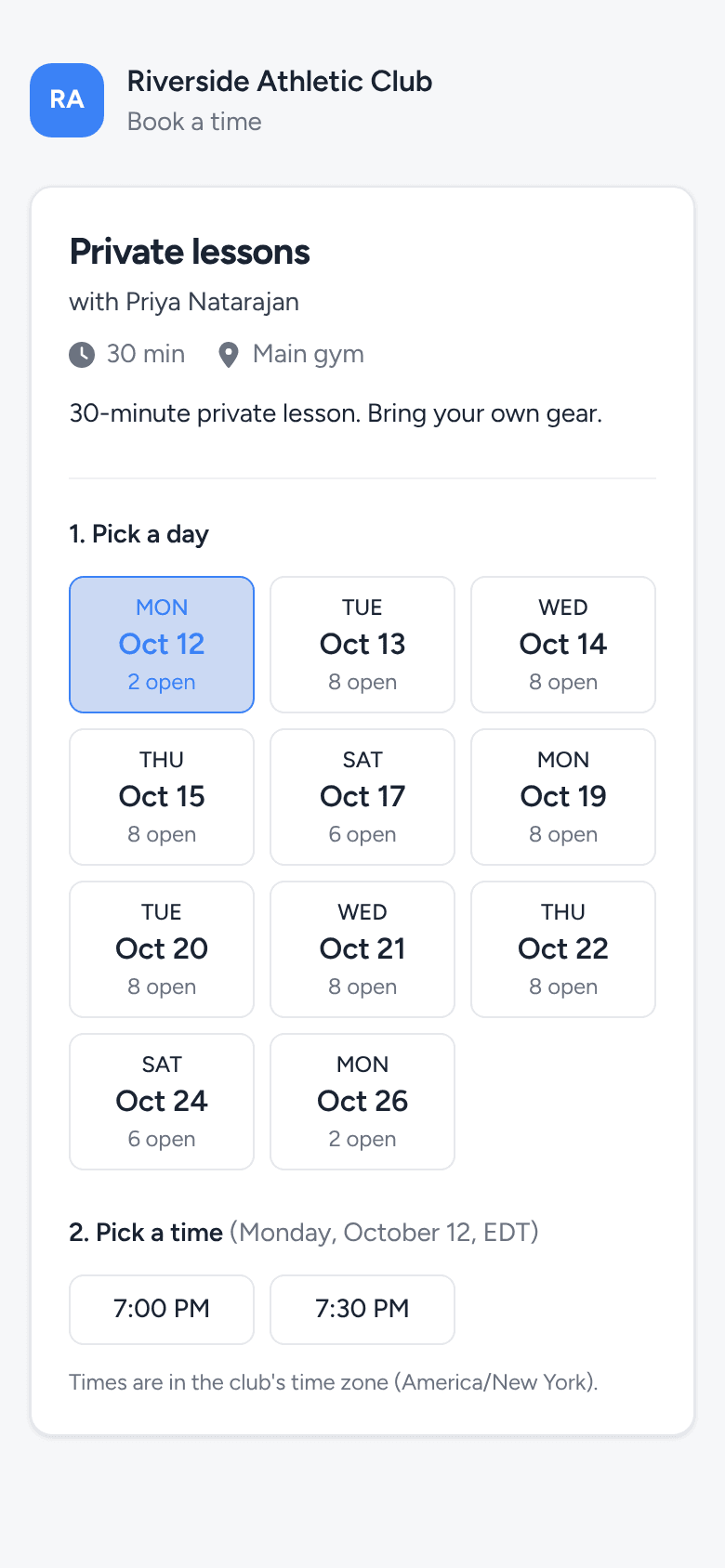
The link opens a page with your club’s logo. Members sign in (or create an account) first; then they pick a day, a time, who the booking is for (any child in their family) and an optional note, and click Confirm booking. They get a confirmation email, and you get a heads-up email.
See and cancel bookings
Upcoming bookings under your calendar lists every booking by day, with the member and their note. Click Cancel on one to cancel it: the member gets an email and the time opens up again. Tick Show cancelled to see past cancellations.
Members can cancel their own bookings from the booking page until the time starts. There’s no reschedule button: they cancel and pick a new time.
Classes
A class repeats every week at the same time and is open to one roster group. Only members in that group (or their parents, on their behalf) can RSVP, up to the number of spots.
Make the group
If it doesn’t exist yet, add the right members to a group on the Roster (the purple + on a member).Click New class
On the Classes tab of Scheduling.Fill in the class
- Title, Group (who can RSVP), and optionally a description, location and instructor.
- When: the weekdays, start time, length, first class (and an optional last class). Add holidays under No class on.
- Spots, when RSVPs open (e.g. a week before) and until when Members can cancel.
Create it and share the RSVP link
Click Create class, then Copy RSVP link. One link covers every class at your club.
How members RSVP
The RSVP link shows the next two weeks of classes for the groups in their family, with spots left. They click RSVP next to each family member who’s coming and get an email. They can cancel until the cutoff you set; after that it says to contact the club.
Take attendance
Under Next two weeks on the Classes tab, click a class to open its list. For each person: Check in or No-show (Undo clears it, Remove takes them off the class). Checking in also records attendance for the day, the same as the check-in kiosk. Use Add someone for walk-ins.